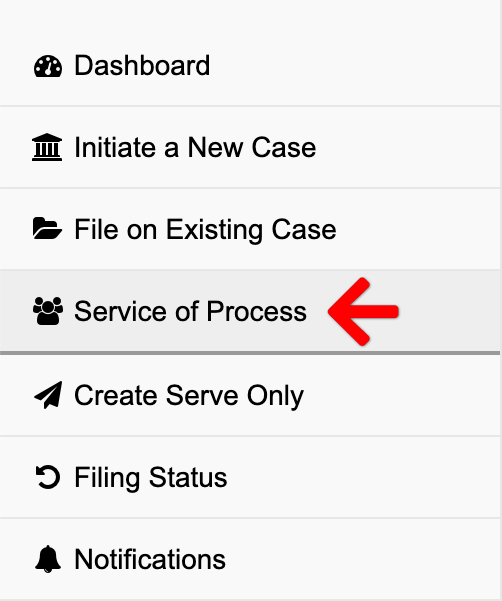
You can now request Service of Process for an existing case in the State of Utah or if you’d like to serve a 10-day summons directly through your Green Filing dashboard, you may do so as well. Simply select the new “Service of Process” option in the left-hand menu to arrange for document delivery to a party’s home or place of business.
When placing a service of process order, it is crucial to provide thorough and precise information about the service target. This ensures that our contractors can serve the necessary documents efficiently and effectively.
Create a Service of Process Order
From the Dashboard, click Service of Process
Select a Service Type
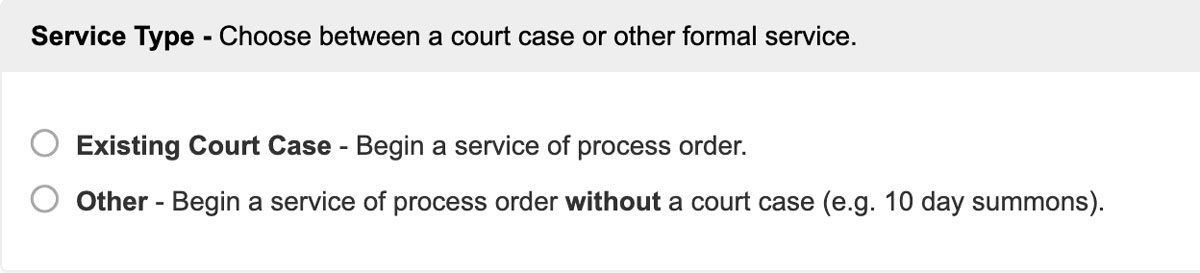
You now have 2 options for your service of process order:
Option A: Existing Court Case — Create a service of process order using a case number.
Option B: Other — Create an order without a case number (e.g., a 10-day summons).
1. Select Case or Select a Court
Choose the Existing Court Case option if you already have a case number.
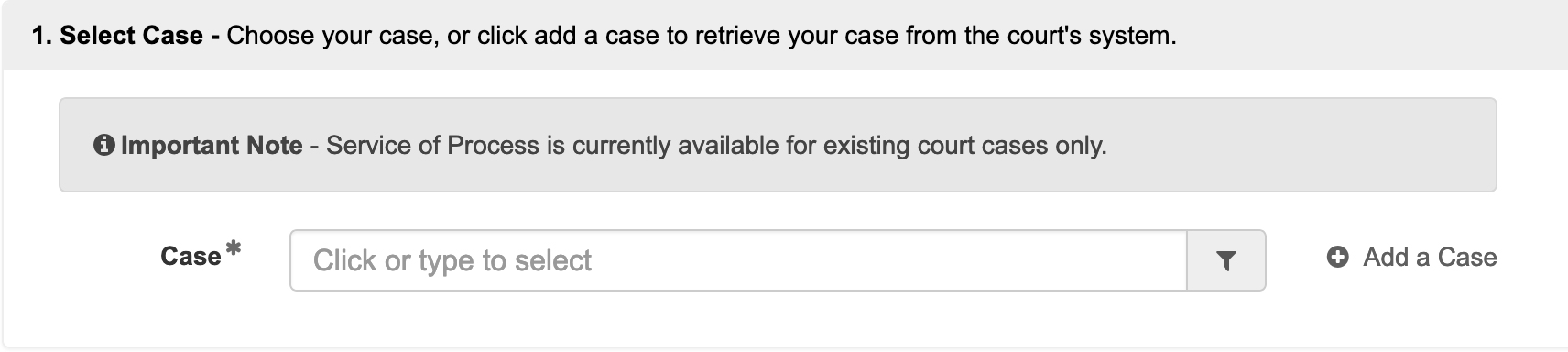
If you do not see your case in the drop down, you may type some or all of the case number to filter your results. If you have not yet added the case to your account, you may click the Add a Case link to the right of the Case field.
Choose the OTHER option if you do not have an existing case number and want to serve something like a 10-day summons.
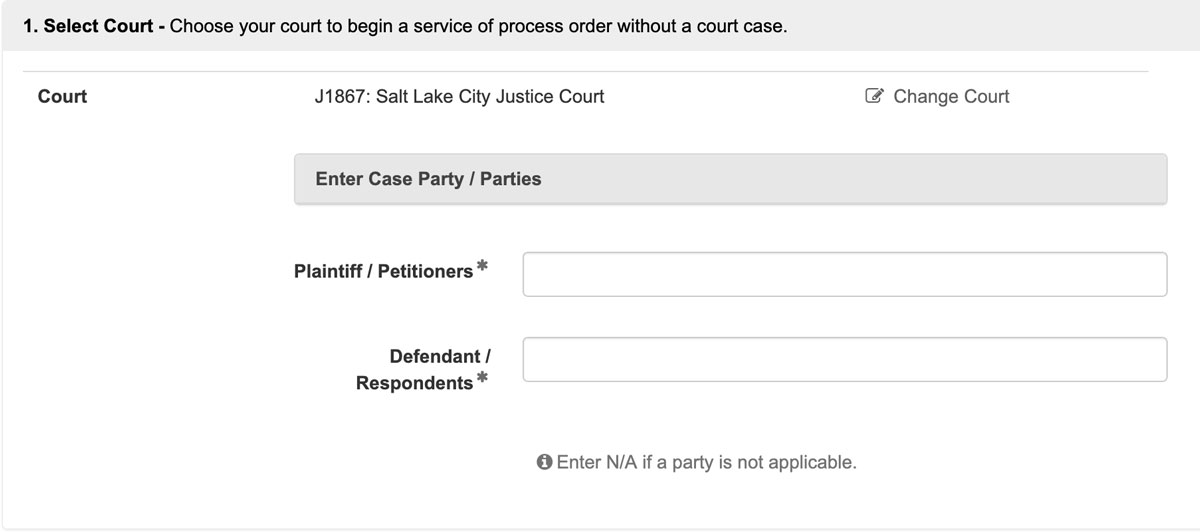
- Select a court from the list,
- then enter Plaintiff / Petitioners and Defendant / Respondents parties. You may enter N/A if a party is not applicable.
2. Add Documents – Define, select, and upload the documents that make up your filing.
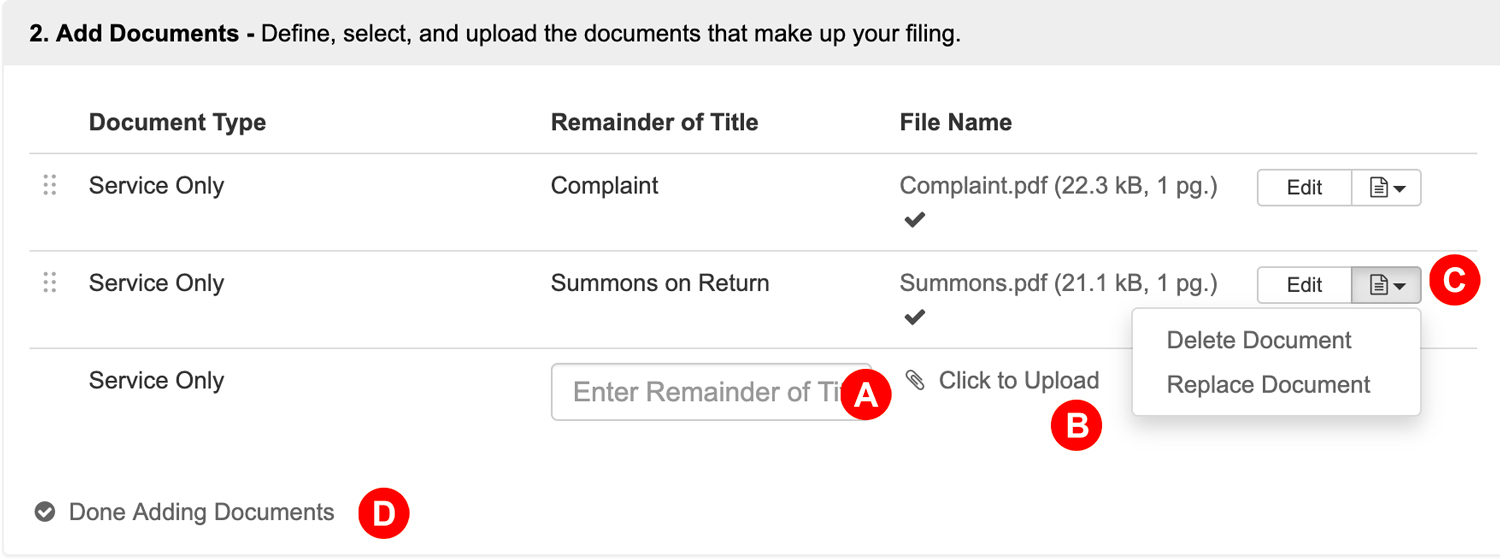
- Remainder of Title – Enter the Remainder of Title in the document description field.
- Click to Upload – Click the link to add your document. Our system will automatically convert most native file formats (i.e. Word, WordPerfect, JPG, PNG, GIF, TIF) into the Court’s preferred Adobe PDF format, upon upload.
- Edit – Click the Edit button to edit a description, delete a document, or replace a document.
- Done Adding Documents – Select Done Adding Documents to close this row and proceed.
3. Service of Process – Serve documents directly to parties at their home or place of business.
Once you have selected your case and uploaded your documents, the Service of Process section will be available for you to request service of process. You will check the box Yes, I would like to have documents served directly to parties. to begin the process.
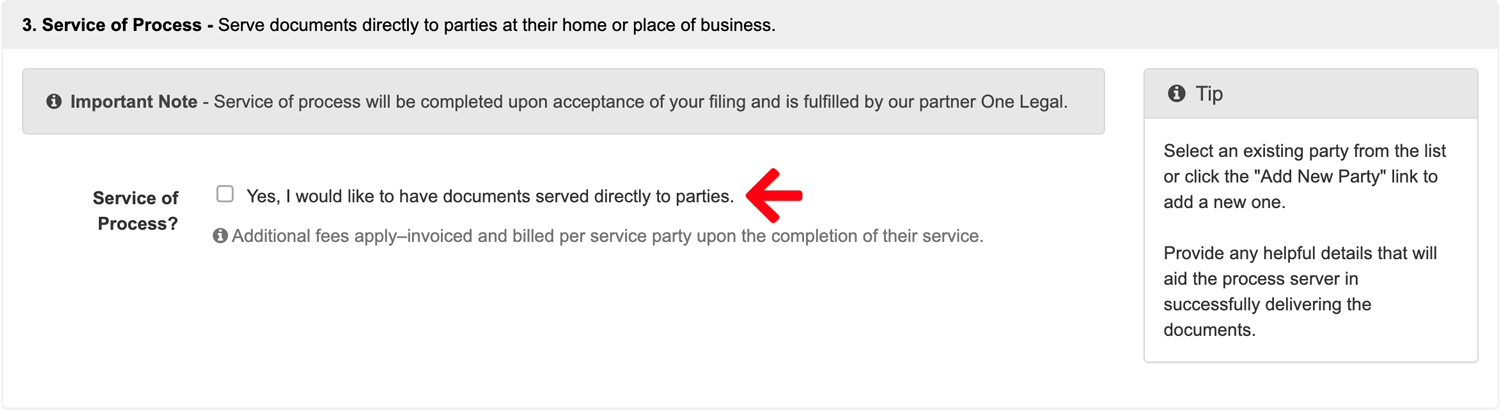
Requesting service of process reveals a Party to Serve drop down and a Add Service Party link to add parties and give any relevant information that can assist the process server execute service.
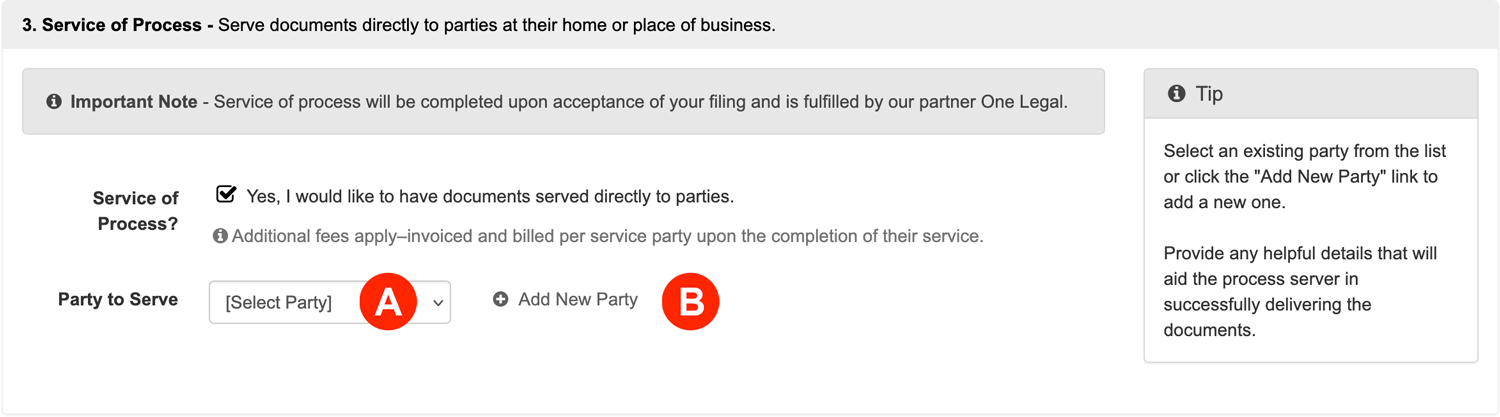
- Party to Serve – To save you time, our system auto-populates existing parties from the case for quick selection.
- Add Service Party – If a party is not listed in the dropdown menu, click this link to add them manually.
Choosing an individual party from the dropdown will automatically fill in their name and known case details. To add a party not listed, select the Individual option and complete the required fields.
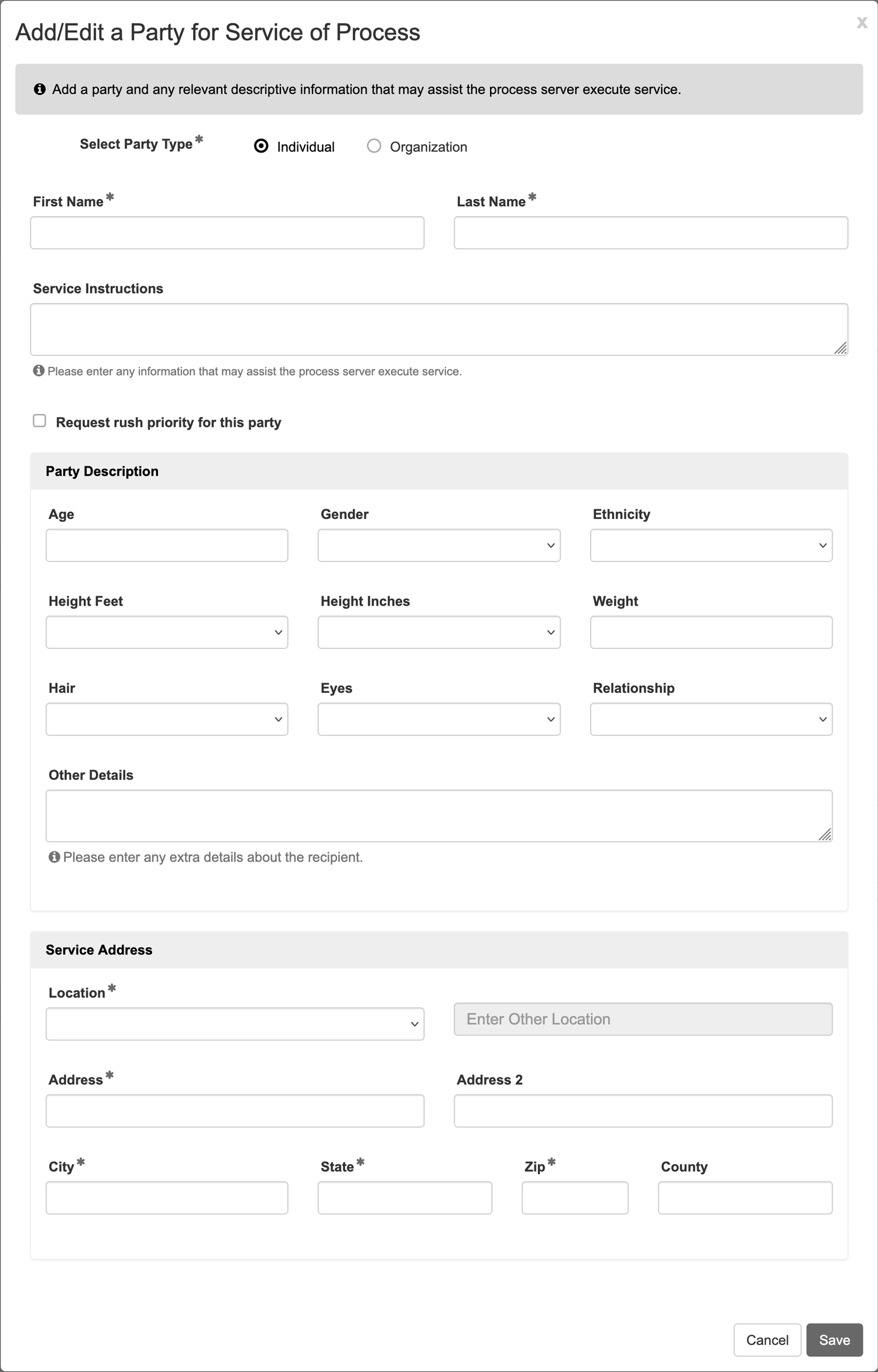
Party Name: Add the party’s name and any service instructions. Additionally, you may request rush priority for this party for an extra fee.
Party Description: To increase the likelihood of a successful serve, it’s beneficial to provide a detailed physical description of the individual. Aim for at least five distinguishing features, such as height, hair color, eye color, any noticeable tattoos, or specific clothing preferences.
Service Address: A full address is required for the individual you wish to serve. If you’re uncertain about the target’s exact location, consider requesting a skip trace to obtain more accurate details.
Choosing an organization party from the dropdown will automatically fill in the organization’s name. To add an organization not listed, select the Organization option and complete the required fields.
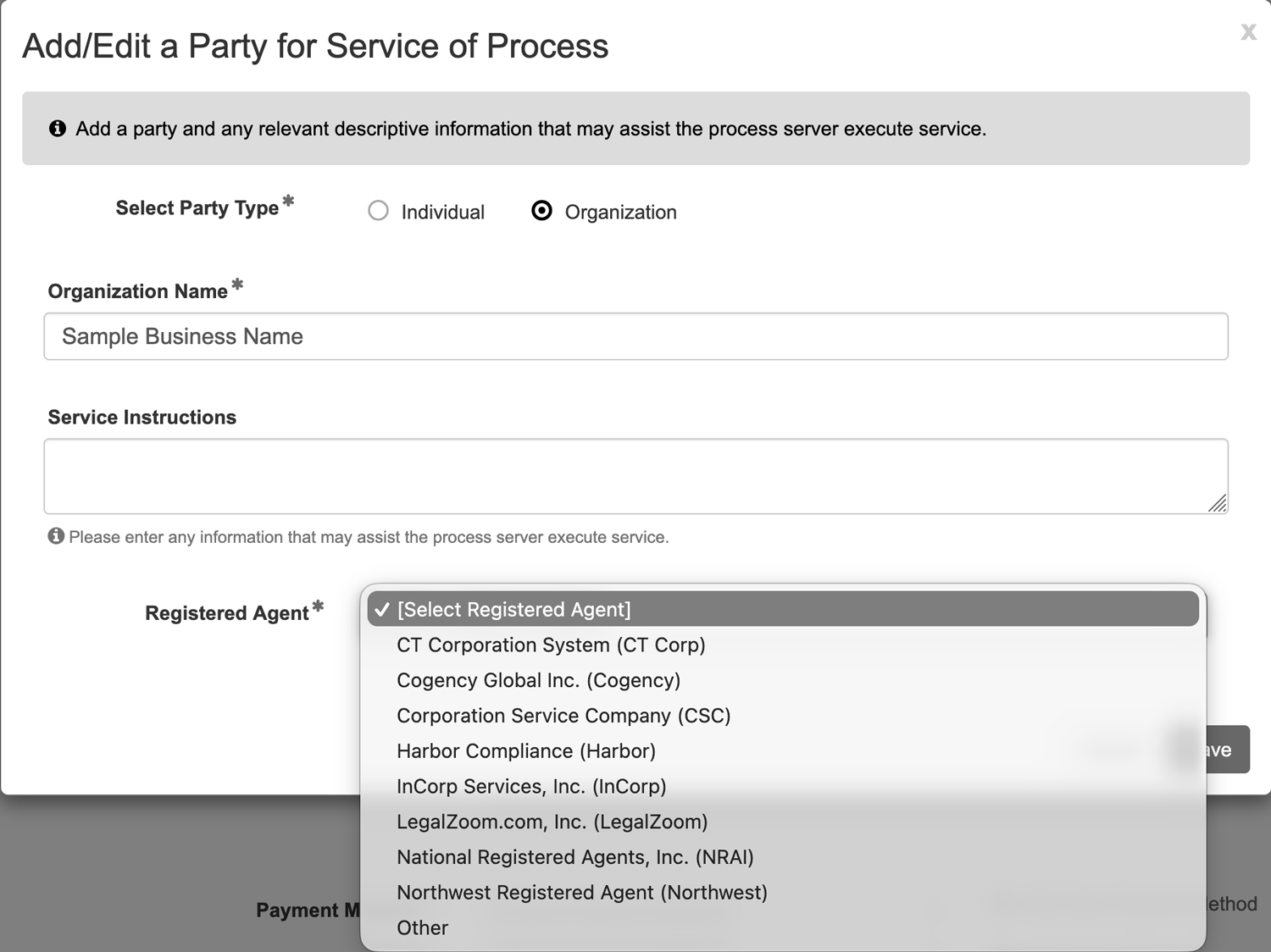
Registered Agent: When serving a business or organization, it’s crucial to identify the agent for service. This is the individual or entity designated to receive legal documents on behalf of the business.
Disburse Witness Fees
If you need to disburse witness fees for a party, please enter the Disbursement Amount and the Payee (whom we should make the check out to) in the Service Instructions text box. We will collect this amount upon completion of the order.
4. Review Party Information
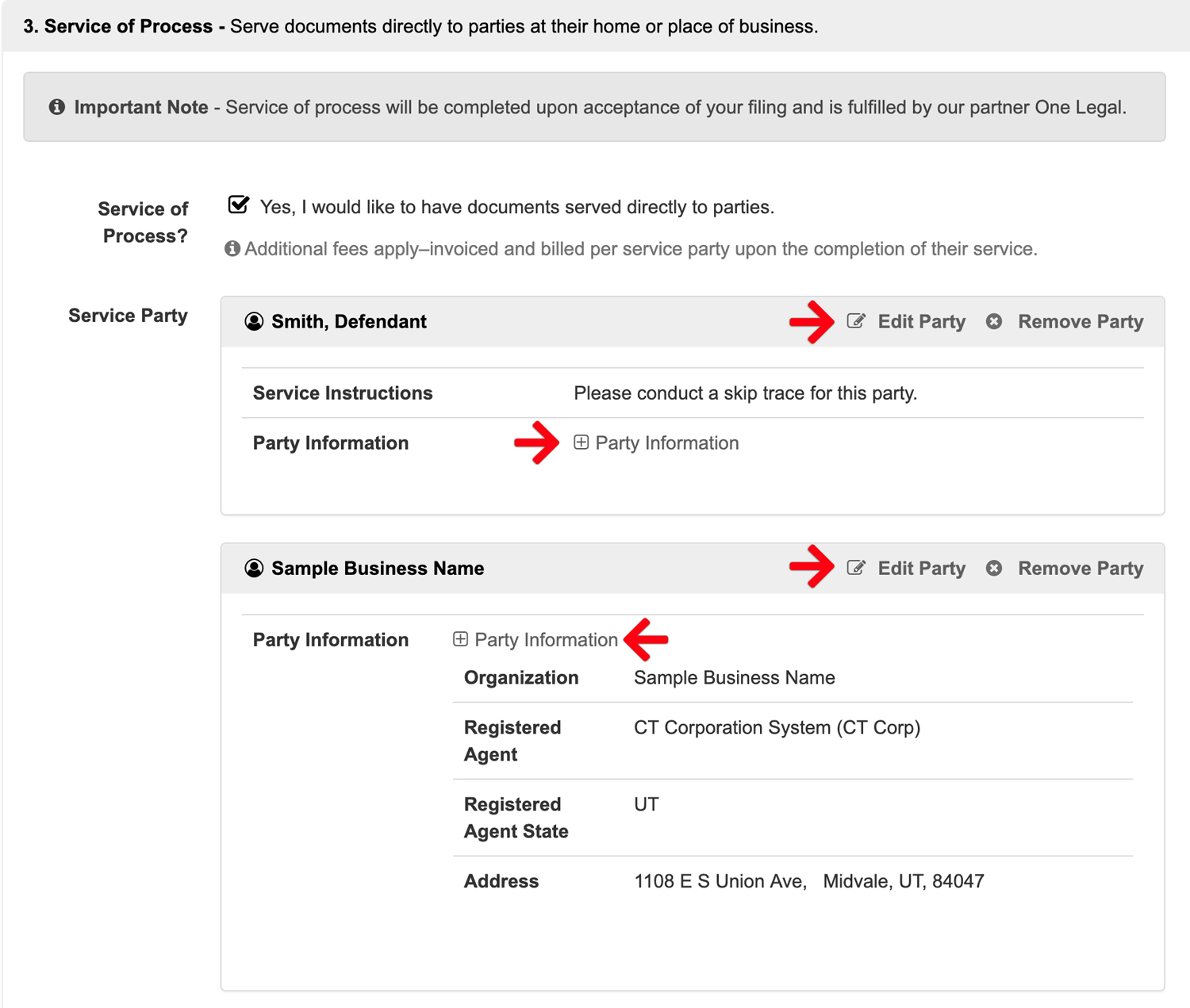
After adding a party, their details will appear in the table below. Click the Party Information link to review your entries for accuracy. If you need to make changes, use the Edit Party link to update the information or Remove Party to delete it.
5. Service of Process Estimated Fees
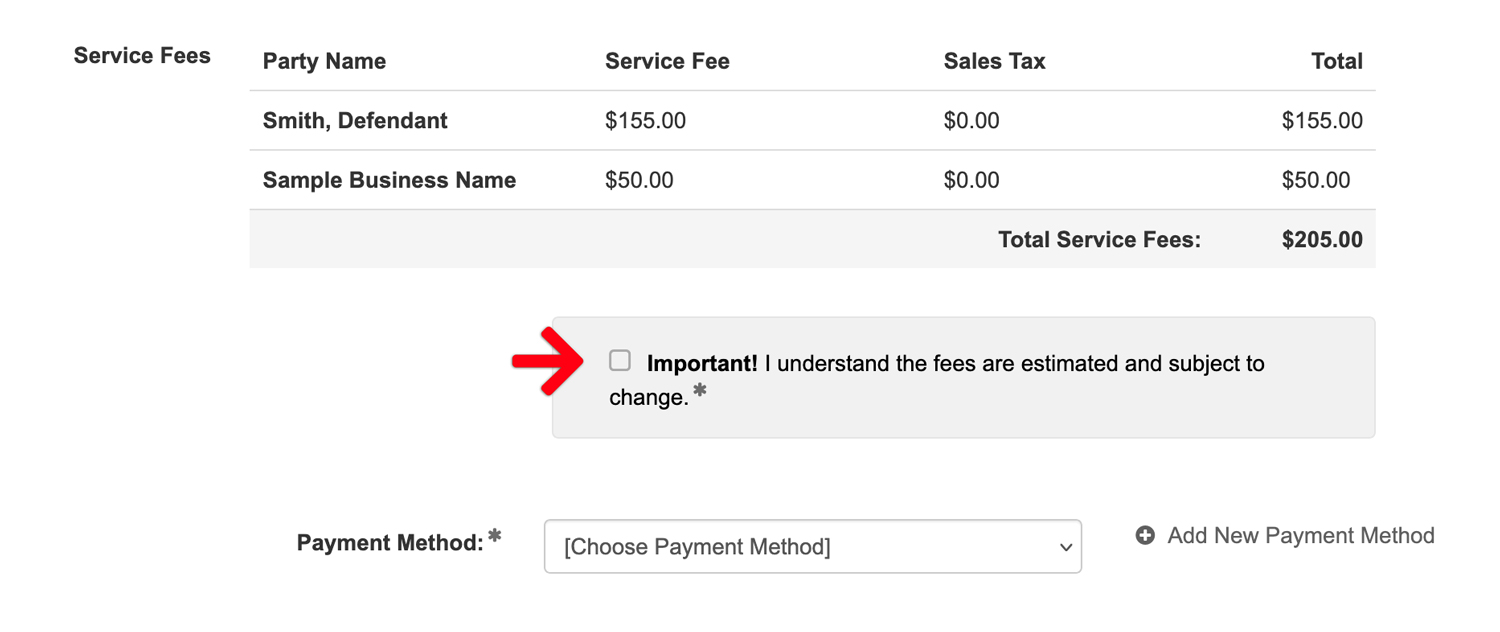
After adding your parties, review the list of estimated service fees. Choose a payment method to continue. Each party will generate an individual invoice charged to your selected payment type.
4. Review & Submit – Finalize your submission, review, and submit.
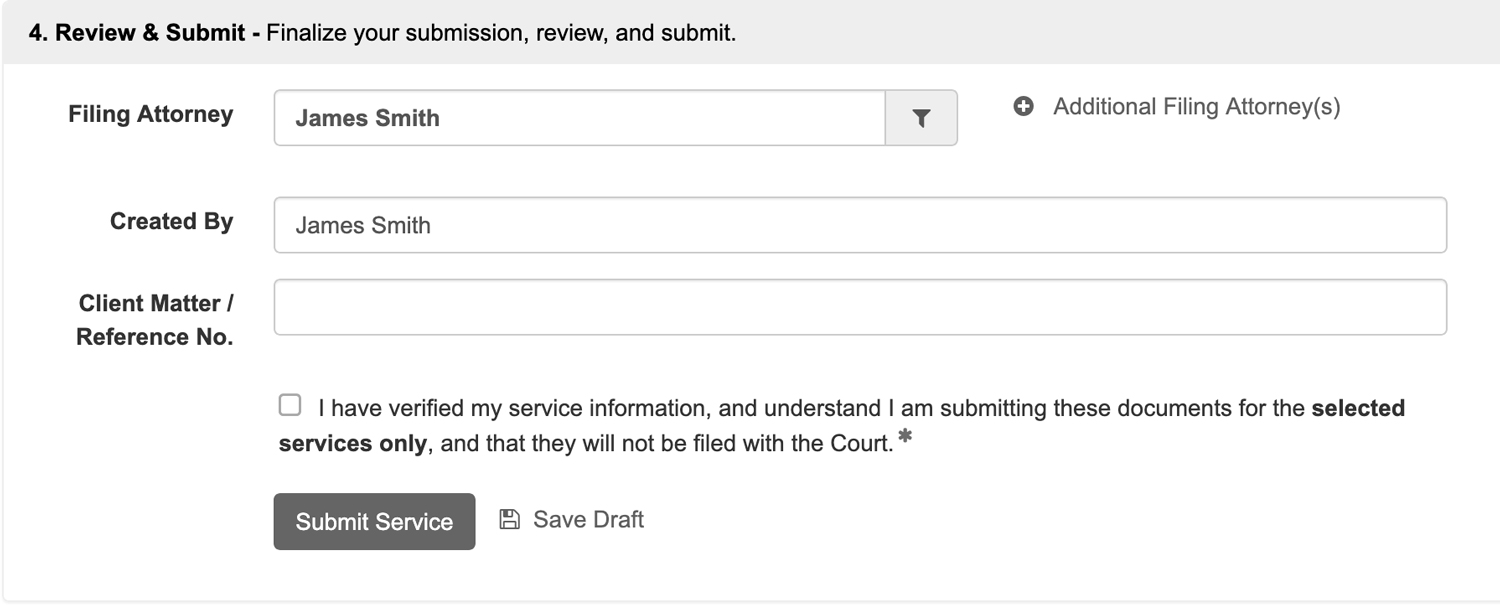
Review your entire filing for accuracy. Then check the box to acknowledge you have verified your service information and that you understand you are submitting these documents for the selected services only. They will not be filed with the Court.
Service of Process Delivery
Upon receipt of your documents, One Legal’s Service of Process team will begin the process of serving your parties those file-stamped documents.
Attempts
Regardless of your chosen service frequency (see below), your assigned process server will make up to five attempts to effect service. If service is not effectuated after five attempts, you will receive a non-service report and be presented with the option to purchase additional attempts.
Frequency
When placing your order, you may choose between two frequency options:
- Standard Delivery: This is the default service frequency. Your server will make the first attempt within three business days of receiving your order. The server will then then make a minimum of one attempt every three days after that (up to five total).
- Rush Priority: If you request rush priority for an order, the server will need to receive that order before noon (12 p.m.) in the time zone of your service target for the first attempt to be made the same day. This is contingent on the date and time the fulfillment team receives the order. The first attempt on orders received after noon (12 p.m.) will be made the next day. Attempts will be made every subsequent day (up to five total).
Communicate with your Service Processor / Upload Additional Documents
Once your order is “In Process,” you can communicate with your process server or upload additional documents. To do so:
- Go to Filing Status in the left menu.
- Click the specific Service of Process Filing ID.
- Scroll to Section 3, where each party’s status is listed.
- Click Communicate with your Service Processor / Upload Additional Documents in the party’s row to open the form.
- Select a message category (e.g., Update Address, Status Request) and enter your comments. Please keep your message brief, as there is a 500-character limit.
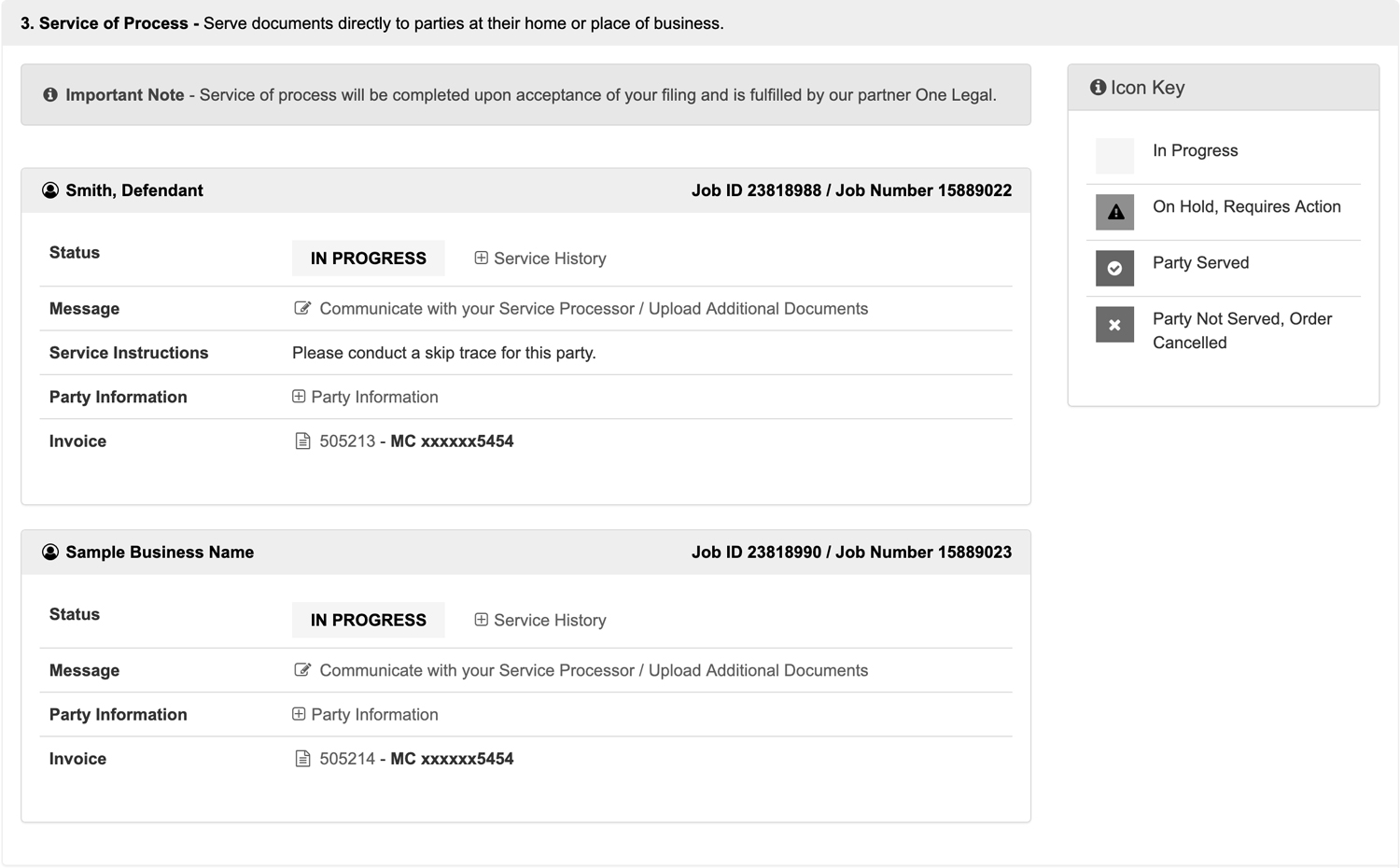
Communications from One Legal
Our Service of Process partner, One Legal, may occasionally contact you directly regarding your order(s). Please look for emails sent from an @onelegal.com address for their official communications.
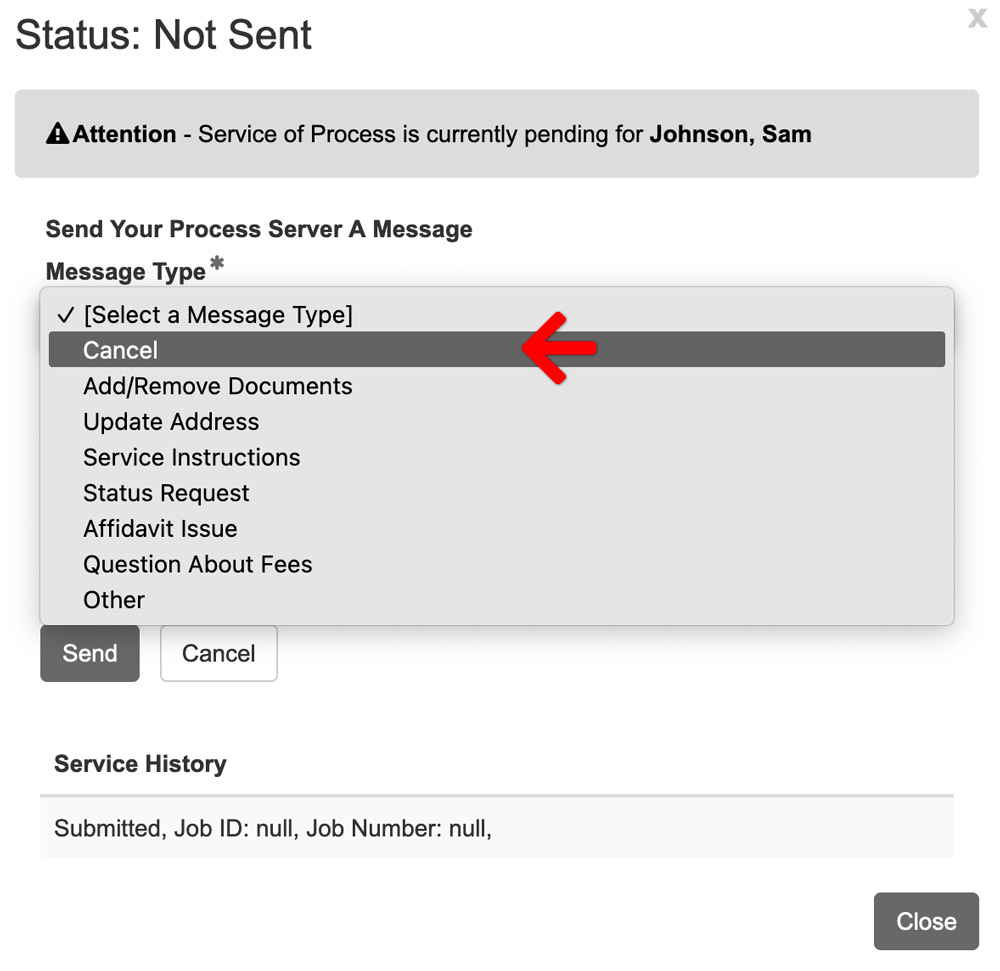
Cancel a Service of Process Order
Cancellations: To cancel an order, you must message the process server for each party individually. Select the Send Message link in the party’s row, choose CANCEL as the message type, and provide a brief reason. Ensure you repeat this for all parties that require cancellation.